
How to Create an Audio File on iPhone?
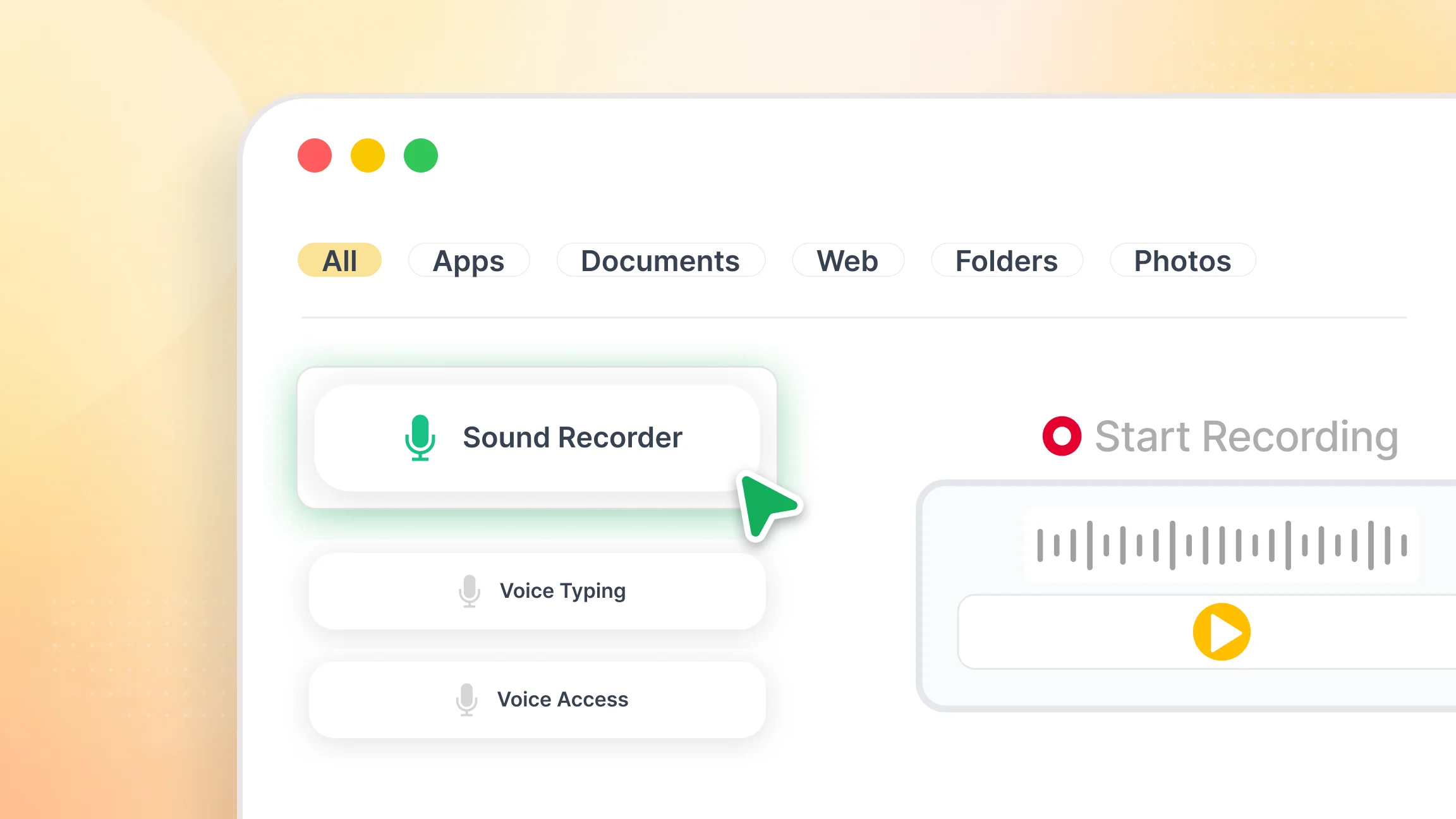
The fastest way to create an audio file on an iPhone is through the Voice Memos app, which comes pre installed on every device. Open Voice Memos from your home screen or search for it using Spotlight. Tap the red record button at the bottom to start recording. Tap pause to stop temporarily, or tap Done when you are finished. Your file saves automatically in the app's library. To export it, tap the three-dot menu next to the recording and select Share. iPhone saves Voice Memos as M4A files, which play on most devices and apps without conversion.
How to Create an Audio File on Android?
Most Android phones include a built-in voice recorder app. Search for "Voice Recorder" or "Recorder" in your app drawer. If you cannot find it, check Settings under Apps.
Tap the record button to begin. Speak clearly and keep your phone's microphone unobstructed for the best result. Tap stop when you are done, then rename the file if needed. Your recording saves to the app's library, where you can play it back, share it, or export it. Most Android recorders save files as MP3 or M4A by default.
How to Create an Audio File on a PC?
Windows: Voice Recorder
Windows includes a free Voice Recorder app that handles basic recordings without any additional software. Open the Start menu, type "Voice Recorder," and launch the app. Allow microphone access when prompted. Click the microphone icon to start recording and the stop button when you are finished. The file saves automatically inside the app. You can trim, rename, or share it directly from there.
Mac: QuickTime Player
QuickTime Player is built into macOS and records audio from your microphone in a few steps. Open QuickTime from your Applications folder, click File in the menu bar, and select New Audio Recording. Click the red record button to begin. When you are done, click stop, then go to File and select Save. QuickTime exports in M4A format.
How to Create an Audio File from Text?
If you have written content you want to turn into audio without recording your own voice, text to speech tools offer a direct alternative. You paste or upload your text, choose a voice, and the platform generates a natural-sounding audio file you can listen to immediately or download for later.
Listen AI handles this for any content type: PDFs, Word documents, web articles, and pasted text all convert into high-quality audio using AI voices. You choose your playback speed, up to 4.5x, and your progress syncs across devices so you can continue listening wherever you left off. For students who want to review notes on the go, professionals working through long documents, or anyone who wants to consume written content without sitting at a screen, this is the most direct way to create an audio file from text.
How to Create an Audio File from a Video?
If you have a video and want to extract just the audio track, free tools handle the conversion quickly.
VLC Media Player is available for Windows and Mac at no cost. Open the app, go to Media, select Convert and Save, add your video file, choose the Audio MP3 profile, and click Start. The app extracts the audio and saves it as a standalone file. Online converters such as CloudConvert work the same way through a browser: upload your video, choose MP3 or WAV as the output format, and download the converted file. If your goal is to listen to the content of a video rather than just extract its audio, Listen AI lets you paste a URL or upload a transcript and converts the text into clean, listenable audio without the background noise or visual distractions a raw video file carries.
Audio File Formats: Which One Should You Use?
The format you save in affects file size, quality, and compatibility.
MP3 is the most widely supported format and works on virtually every device and platform. It compresses audio to reduce file size, with minimal loss in quality for most uses. WAV files are uncompressed and offer higher audio fidelity, but they take up significantly more storage. M4A is the default format on Apple devices and balances quality with file size effectively. For most everyday purposes, MP3 is the practical choice.
